
Input and Output
Learn how to configure Worker inputs and understand the output data structure.
Each Worker accepts input that tells it what to do. You can run a Worker from the CoreClaw Console UI and configure the input using the auto-generated form:
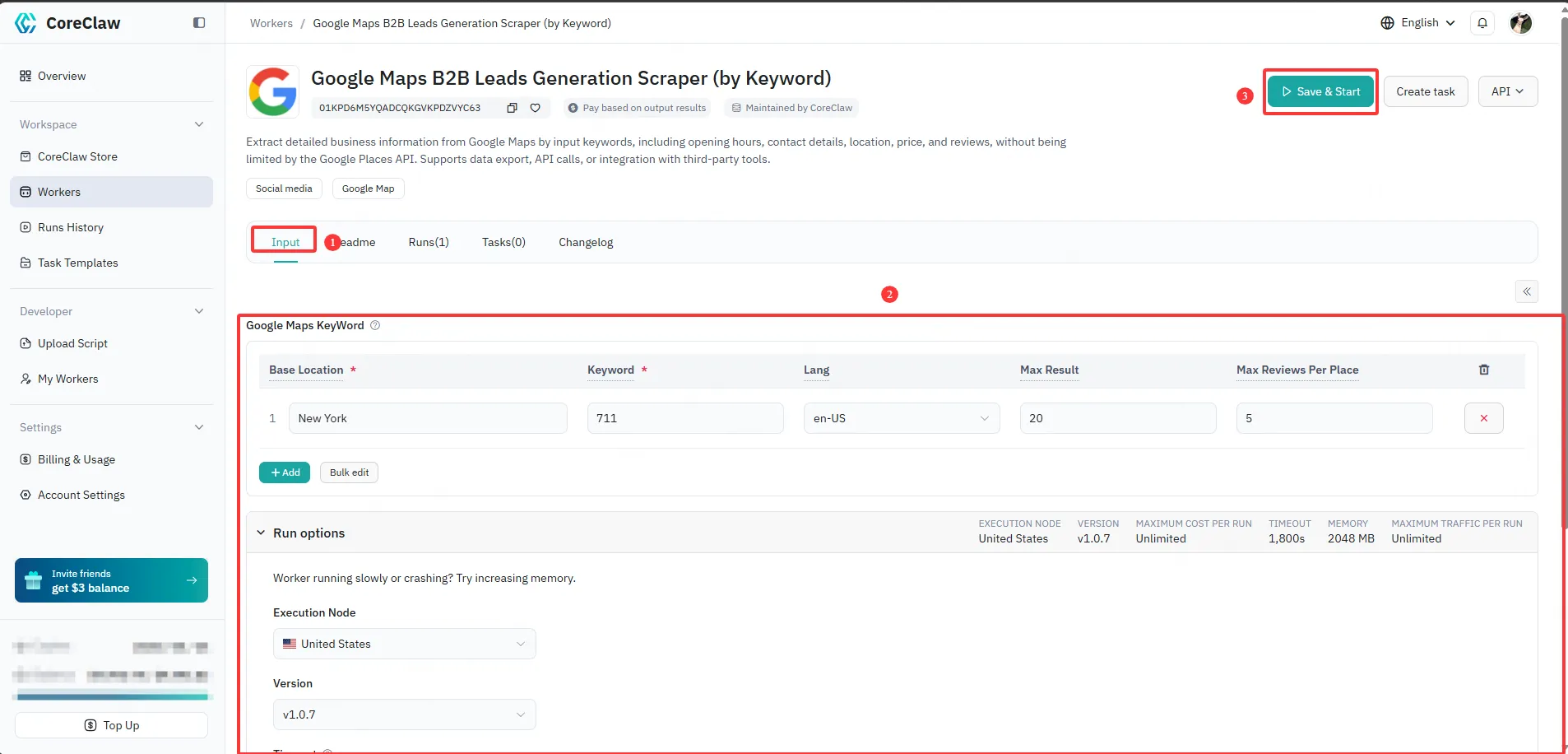
Configuring input via the UI is equivalent to passing input parameters as JSON. You can click Batch Edit to conveniently enter a large number of parameters at once.
When running a Worker via API, you pass the same input as a JSON object. For the example shown in the screenshot above, the corresponding JSON input would be:
[ { "lang": "en-US", "keyword": "711", "max_results": 20, "base_location": "New York", "max_reviews_per_place": 5 }]Options — Build, Timeout, and Memory
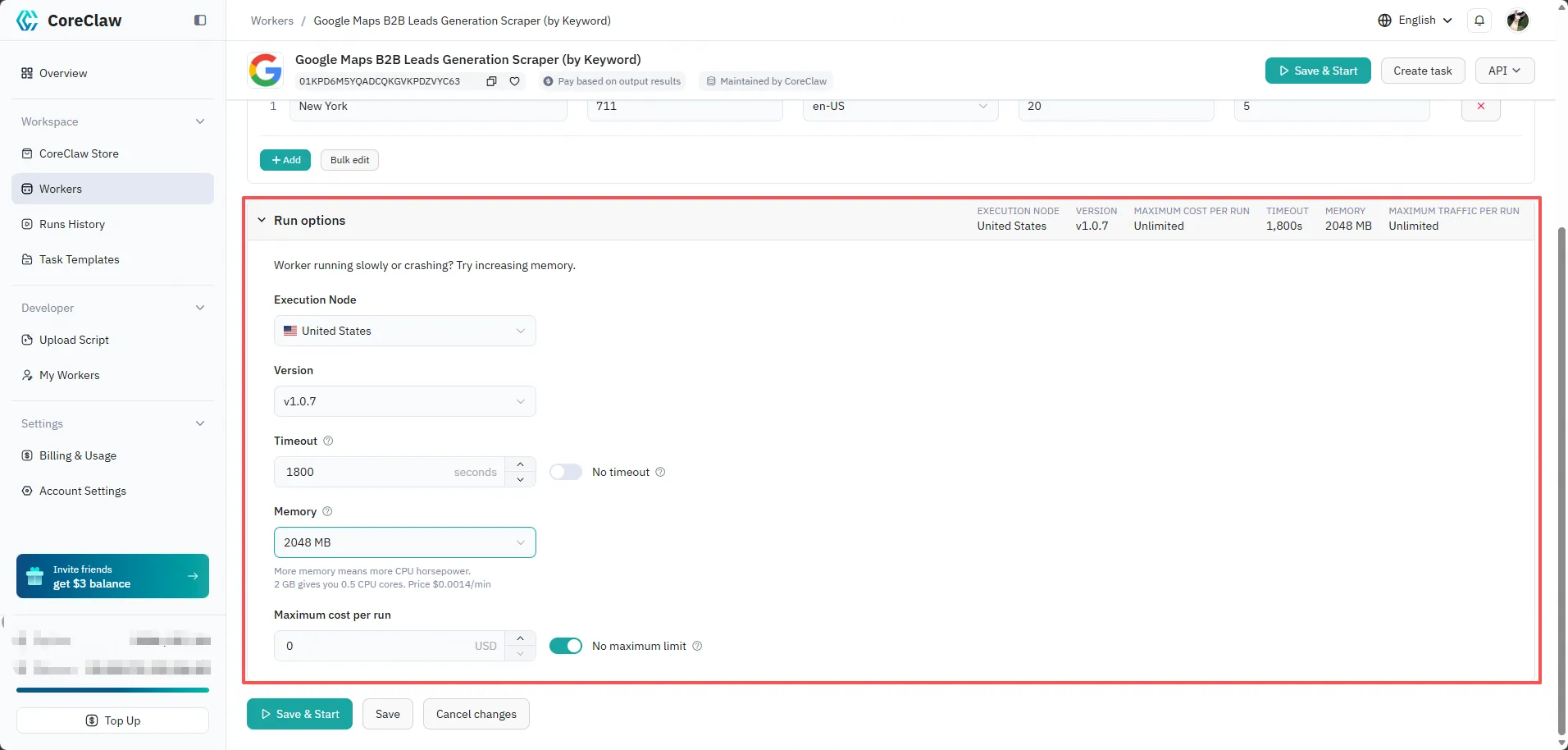
Section titled “Options — Build, Timeout, and Memory”As part of the input, you can also specify run options for your Worker, such as the script version, proxy node, timeout, and memory allocation.
Output Data
Section titled “Output Data”Worker output is structured data stored via push_data. The structure depends on the Worker’s purpose and is defined by the output_schema.json file.
Export Formats
Section titled “Export Formats”In the Console you can export output data in eight formats:
| Format | Best For |
|---|---|
| CSV | Spreadsheets and data analysis |
| JSON | Developers and API integration |
| JSONL | Line-delimited, stream-friendly pipelines |
| XLS | Legacy Excel workbooks |
| XLSX | Modern Excel workbooks |
| HTML | Viewable in any browser |
| XML | Legacy and enterprise pipelines |
| RSS | Feed readers and monitor-style integrations |
Data Size Limits
Section titled “Data Size Limits”- Large datasets are paginated
- Use API for streaming large results