
Cursor
Connect Cursor IDE to the CoreClaw MCP Server so your AI coding assistant can discover CoreClaw workers, run them, monitor runs, and retrieve results directly within your editor.
Prerequisites
Section titled “Prerequisites”- Cursor installed
- A CoreClaw account with an API key from Console -> Settings -> API & Integrations
Configuration
Section titled “Configuration”Cursor supports MCP via Streamable HTTP transport. Configure it by creating an mcp.json file in your project or global settings.
Step 1: Create the MCP Configuration File
Section titled “Step 1: Create the MCP Configuration File”Project-level:
.your-project/.cursor/mcp.jsonGlobal:
~/.cursor/mcp.jsonStep 2: Add the CoreClaw MCP Configuration
Section titled “Step 2: Add the CoreClaw MCP Configuration”{ "mcpServers": { "coreclaw": { "url": "https://mcp.coreclaw.com/mcp", "headers": { "Authorization": "Bearer YOUR_CORECLAW_API_KEY" } } }}Replace YOUR_CORECLAW_API_KEY with your actual CoreClaw API key.
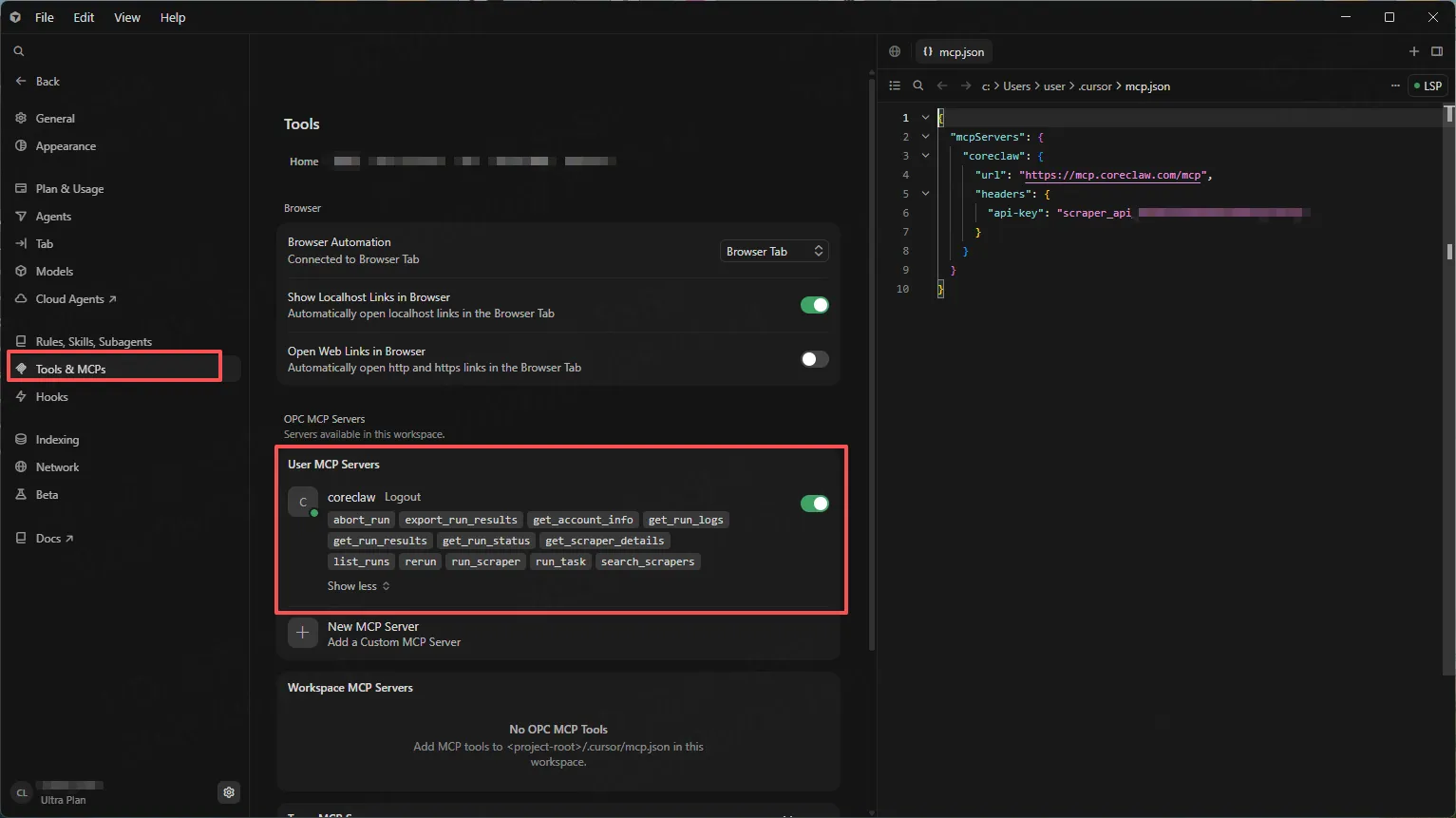
Step 3: Restart Cursor
Section titled “Step 3: Restart Cursor”After saving the configuration, restart Cursor for the changes to take effect.
Verify the Connection
Section titled “Verify the Connection”- Open Cursor and start a new chat.
- Switch to Agent mode.
- Ask: “Find Amazon workers on CoreClaw.”
- Cursor should call
list_store_workersand return matching workers.
Example Conversation
Section titled “Example Conversation”You: Find a Google Maps worker and extract restaurant data near Central Park, New York.
Cursor: I’ll find a Google Maps worker, inspect its input schema, and run it for you. [Calls
list_store_workers->get_worker_input_schema->run_worker->get_worker_run->list_worker_run_results]
Troubleshooting
Section titled “Troubleshooting”Tools not appearing
Section titled “Tools not appearing”- Restart Cursor after MCP config changes.
- Ensure you are in Agent mode.
- Check that
mcp.jsonis in the correct location.
Authentication errors
Section titled “Authentication errors”- Ensure the
api-keyheader value matches your CoreClaw API key exactly. - Verify your key is active in the Console.