
Quick Start
Build your first Worker and run it on CoreClaw in minutes. A Worker is a script you upload to CoreClaw; the platform gives it an isolated sandbox, a proxy, an optional remote browser, scheduling, a results table, and a path to publish to the Worker Store. By the end of this page you’ll have a Worker that runs on CoreClaw — roughly 15–20 minutes if you already know one of Python, Node.js, or Go.
Prerequisites
Section titled “Prerequisites”- A CoreClaw developer account
- Basic knowledge of Python, Node.js, or Go
- Git installed on your machine
Runtime Environment
Section titled “Runtime Environment”Before writing code, understand how your Worker executes on CoreClaw — this is the single most common source of “works locally, fails on the platform” bugs.
Your Worker runs in an isolated network sandbox with no direct internet access. Outbound traffic must go through the platform’s built-in proxy; browser automation connects to a remote browser over CDP, not through the proxy.
┌──────────────────────── CoreClaw sandbox ────────────────────────┐│ ││ Your Worker script ││ │ ││ ├─ HTTP / fetch requests ──► Platform SOCKS5 proxy ││ │ reads PROXY_AUTH env (outbound net) ││ │ ││ └─ Browser automation ──────► Remote browser (CDP) ││ ChromeWs / CamoufoxDomain proxy handled ││ / LightpandaDomain automatically ││ │└─────────────────────────────────────────────────────────────────┘- HTTP request scripts — proxy configuration is required. Read the proxy address from the
PROXY_AUTHenvironment variable and configure your HTTP client to use the SOCKS5 proxy. See Proxy Support. - Browser automation scripts — connect to the remote browser via
ChromeWs, to Camoufox viaCamoufoxDomain, or to Lightpanda viaLightpandaDomain(CDP/WebSocket). The proxy is handled automatically by the browser — no manual proxy configuration needed. See Browser Fingerprinting.
Development Approaches
Section titled “Development Approaches”CoreClaw supports two approaches:
- Migrate an existing script — add the CoreClaw SDK integration,
input_schema.json, andoutput_schema.jsonto a script you already have. - Start from a template — clone a CoreClaw demo repository and develop directly. The steps below follow this path.
Step-by-Step Guide
Section titled “Step-by-Step Guide”1. Clone a Template
Section titled “1. Clone a Template”Choose your preferred language and clone the demo repository:
- Python: Python-Worker-Demo
- Node.js: Node-Worker-Demo
- Go: Go-Worker-Demo
# Pythongit clone https://github.com/Core-Claw/Python-Worker-Demo.git
# Node.jsgit clone https://github.com/Core-Claw/Node-Worker-Demo.git
# Gogit clone https://github.com/Core-Claw/Go-Worker-Demo.git
2. Project Structure
Section titled “2. Project Structure”A minimal Worker project requires:
├── main.py # Main entry file├── requirements.txt # Dependencies├── input_schema.json # Input configuration├── output_schema.json # Output configuration├── sdk.py # CoreClaw SDK├── sdk_pb2.py # Data processing module└── sdk_pb2_grpc.py # Network communication module- input_schema.json — Defines the input form that users see when running your Worker. See Input Schema for details.
- output_schema.json — Defines the output table structure for your Worker’s results. See Output Schema for details.
- sdk.py / sdk_pb2.py / sdk_pb2_grpc.py — CoreClaw SDK modules for communicating with the platform runtime.
3. Write Your Script
Section titled “3. Write Your Script”Edit your main entry file to implement the scraping logic. The shape is the same across languages — get input → configure proxy → run the request → set headers → push data. See Runtime Environment above for why proxy configuration is required for HTTP scripts.
The CoreClaw SDK exposes four namespaces in every language: Parameter (input), Result (output), Log (logging), plus the proxy/browser environment variables.
Python (main.py):
import asyncioimport osimport httpxfrom sdk import CoreSDK
async def run():    try:        # 1. Get input parameters        input_json_dict = CoreSDK.Parameter.get_input_json_dict()        CoreSDK.Log.debug(f"Input parameters: {input_json_dict}")
        # 2. Configure the SOCKS5 proxy the platform provides via PROXY_AUTH.        #    HTTP scripts MUST route through it — the sandbox blocks direct net.        proxy_auth = os.environ.get("PROXY_AUTH")        proxies = {"all://": f"socks5://{proxy_auth}"} if proxy_auth else None        CoreSDK.Log.info(f"Proxy configured: {bool(proxy_auth)}")
        # 3. Business logic — a real request through the proxy        url = input_json_dict.get("url")        CoreSDK.Log.info(f"Processing URL: {url}")
        with httpx.Client(proxy=proxy_auth and f"socks5://{proxy_auth}", timeout=30) as client:            resp = client.get(url)            title = _extract_title(resp.text)  # your parsing logic
        result = {"url": url, "status_code": resp.status_code, "title": title}
        # 4. Set table headers (keys must match output_schema.json)        headers = [            {"label": "URL", "key": "url", "format": "text"},            {"label": "Status", "key": "status_code", "format": "text"},            {"label": "Title", "key": "title", "format": "text"},        ]        CoreSDK.Result.set_table_header(headers)
        # 5. Push result data        CoreSDK.Result.push_data(result)
        CoreSDK.Log.info("Script execution completed")
    except Exception as e:        CoreSDK.Log.error(f"Execution error: {e}")        raise
def _extract_title(html: str) -> str:    import re    m = re.search(r"<title[^>]*>(.*?)</title>", html, re.I | re.S)    return (m.group(1).strip() if m else "")[:200]
if __name__ == "__main__":    asyncio.run(run())
Node.js (index.js):
#!/usr/bin/env node'use strict'
const coresdk = require('./sdk')const { SocksProxyAgent } = require('socks-proxy-agent')const fetch = require('node-fetch') // or global fetch on Node 18+
async function run() {    try {        // 1. Get input parameters        const inputJson = await coresdk.parameter.getInputJSONObject()        await coresdk.log.debug(`Input parameters: ${JSON.stringify(inputJson)}`)
        // 2. Configure the SOCKS5 proxy from PROXY_AUTH + PROXY_DOMAIN        const proxyAuth = process.env.PROXY_AUTH        const proxyDomain = process.env.PROXY_DOMAIN        const agent =            proxyAuth && proxyDomain                ? new SocksProxyAgent(`socks5://${proxyAuth}@${proxyDomain}`)                : undefined        await coresdk.log.info(`Proxy configured: ${Boolean(agent)}`)
        // 3. Business logic — a real request through the proxy        const url = inputJson?.url        await coresdk.log.info(`Processing URL: ${url}`)
        const resp = await fetch(url, { agent })        const html = await resp.text()        const title = (html.match(/<title[^>]*>(.*?)<\/title>/is)?.[1] ?? '').trim().slice(0, 200)
        const result = { url, status_code: resp.status, title }
        // 4. Set table headers (keys must match output_schema.json)        const headers = [            { label: 'URL', key: 'url', format: 'text' },            { label: 'Status', key: 'status_code', format: 'text' },            { label: 'Title', key: 'title', format: 'text' },        ]        await coresdk.result.setTableHeader(headers)
        // 5. Push result data        await coresdk.result.pushData(result)
        await coresdk.log.info('Script execution completed')    } catch (e) {        await coresdk.log.error(`Execution error: ${e}`)        throw e    }}
run()
Go (main.go):
package main
import (    "context"    "encoding/json"    "fmt"    "io"    "net/http"    "os"    "regexp"    "strings"
    coresdk "your_module/GoSdk")
func main() {    ctx := context.Background()
    // 1. Get input parameters    inputJSON, err := coresdk.Parameter.GetInputJSONString(ctx)    if err != nil {        coresdk.Log.Error(ctx, fmt.Sprintf("Failed to get input params: %v", err))        return    }    var input struct{ URL string `json:"url"` }    _ = json.Unmarshal([]byte(inputJSON), &input)
    // 2. Configure the SOCKS5 proxy from PROXY_AUTH (required for HTTP)    proxyAuth := os.Getenv("PROXY_AUTH")    coresdk.Log.Info(ctx, fmt.Sprintf("Proxy configured: %v", proxyAuth != ""))    // wire proxyAuth into your http.Transport here (see Proxy Support doc)
    // 3. Business logic — a real request    resp, err := http.Get(input.URL)    if err != nil {        coresdk.Log.Error(ctx, fmt.Sprintf("Request failed: %v", err))        return    }    defer resp.Body.Close()    body, _ := io.ReadAll(resp.Body)    re := regexp.MustCompile(`(?is)<title[^>]*>(.*?)</title>`)    title := strings.TrimSpace(re.FindStringSubmatch(string(body))[1])    if len(title) > 200 { title = title[:200] }
    result := map[string]any{        "url":         input.URL,        "status_code": resp.StatusCode,        "title":       title,    }
    // 4. Set table headers (keys must match output_schema.json)    headers := []*coresdk.TableHeaderItem{        {Label: "URL", Key: "url", Format: "text"},        {Label: "Status", Key: "status_code", Format: "text"},        {Label: "Title", Key: "title", Format: "text"},    }    if _, err := coresdk.Result.SetTableHeader(ctx, headers); err != nil {        coresdk.Log.Error(ctx, fmt.Sprintf("Failed to set headers: %v", err))        return    }
// 5. Push result data jsonBytes, _ := json.Marshal(result) if _, err := coresdk.Result.PushData(ctx, string(jsonBytes)); err != nil { coresdk.Log.Error(ctx, fmt.Sprintf("Failed to push data: %v", err)) return } coresdk.Log.Info(ctx, "Script execution completed")}4. Configure Input Schema
Section titled “4. Configure Input Schema”Define the input form in input_schema.json:
{ "description": "My first Worker", "concurrency": { "fields": ["url"] }, "properties": [ { "title": "URL", "name": "url", "type": "array", "editor": "requestList", "default": [ { "url": "https://example.com" } ], "required": true } ]}5. Configure Output Schema
Section titled “5. Configure Output Schema”Define the output table structure in output_schema.json. The name fields must match the keys you push in Step 3, and each type pairs with the format you used in set_table_header (string ↔ text, etc.):
[ { "name": "url", "type": "string", "description": "The scraped URL" }, { "name": "status_code", "type": "string", "description": "HTTP status code of the response" }, { "name": "title", "type": "string", "description": "Page <title>" }]6. Test Your Script
Section titled “6. Test Your Script”There are two ways to test your script:
- Local testing — Run the script directly on your machine to verify the core logic. No Worker adaptation needed at this stage; just make sure the scraping logic works as expected.
- Platform testing — Complete the Worker adaptation (add SDK integration,
input_schema.json,output_schema.json), package as a ZIP, and upload to CoreClaw to test in the platform’s runtime environment.
7. Upload to CoreClaw
Section titled “7. Upload to CoreClaw”Once your script is working, package it as a ZIP file and upload it to CoreClaw:
- Log in to CoreClaw Console
- Click the upload script icon to create a new Worker
- Upload your ZIP code package
- Fill in the title, description, and select a category
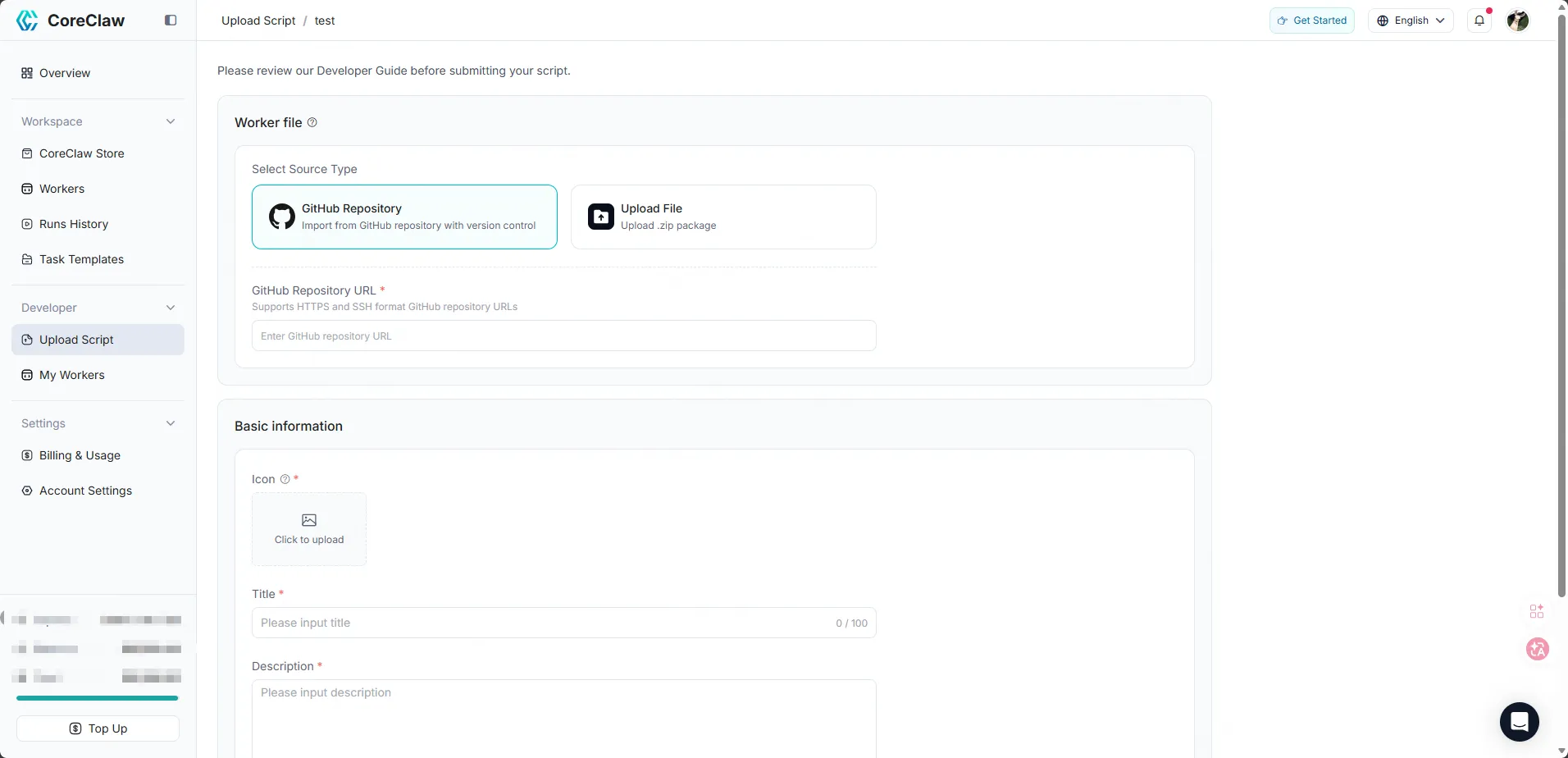
After uploading, your Worker will appear in My Workers in the Console. At this point, your Worker is private — it is not visible to other users. You can run and debug it directly from the Console.
8. Run & Debug in the Console
Section titled “8. Run & Debug in the Console”Before publishing, verify your Worker on the platform runtime:
- Open My Workers → click your Worker to open its detail page.
- Fill in the test input (the form is generated from your
input_schema.json). - Click Run to start a run — this is where proxy/sandbox issues surface, so start with a single URL.
- Watch the run’s status move
READY → RUNNING → SUCCEEDED(orFAILED). - When it finishes, check three things:
- Results — the table built from your
output_schema.json+set_table_headerkeys. Empty or misaligned columns usually mean a key mismatch between schema andpush_data. - Logs — everything you sent via
CoreSDK.Log.*. This is your only debugger on the platform.
- Results — the table built from your
- If a run fails, fix the code, re-zip, and re-upload — private Workers iterate freely with no review.
9. Publish to Worker Store
Section titled “9. Publish to Worker Store”When your Worker is ready for public use:
- Go to My Workers and click on your Worker
- Click Settings & Publication
- Click Publish to submit for platform review
- Once the review is approved, your Worker will be publicly listed in the CoreClaw Worker Store